
TABLE OF CONTENTS
Experience the Future of Speech Recognition Today
Try Vatis now, no credit card required.
You probably need a transcript for something that already happened. A customer call. A Zoom interview. A webinar recording. A lecture. A court hearing clip. A newsroom segment pulled from an archive. The video exists, people spoke, and now someone needs the words in a format they can search, quote, edit, subtitle, store, or feed into another system.
That’s where a video to text converter online stops being a nice-to-have and becomes part of the workflow. Used well, it turns a slow manual task into a fast first draft. Used badly, it gives you a messy transcript that creates more editing work than it saves.
The gap between those outcomes usually comes down to three things: input quality, settings, and how you handle the result after the transcript is generated. For teams that work with sensitive or high-volume content, security and integration matter just as much.
Why Manual Transcription Is No Longer an Option
Manual transcription breaks down in the same place every time. The recording starts well enough, then someone speaks over another person, a name gets mumbled, the laptop fan kicks in, and the typist starts rewinding the same ten seconds over and over.
Journalists run into this with interviews. CX teams hit it with support calls. Legal and compliance teams hit it with testimony, internal reviews, and recorded meetings. Marketers hit it when they want to turn webinars or customer videos into captions and blog drafts. The work isn’t hard in theory. It’s repetitive, slow, and expensive in attention.
A modern video to text converter online changes the sequence of work. Instead of starting from a blank page, you start from a machine-generated draft with timestamps, speaker labels, and searchable text. That means your effort goes into correction and judgment, not raw typing.
The workflow changed for good
The change isn’t niche. The global AI transcription market, which includes video-to-text converters, reached $4.5 billion in 2024 and is projected to reach $19.2 billion by 2034, while transcriptions can boost video engagement by up to 50% and increase views by 12% through better SEO, according to Sonix transcription market and video engagement statistics.
That matters because transcripts don’t just document speech. They make spoken content usable. Search engines can index it. Editors can scan it. Producers can cut clips faster. Compliance teams can review language without replaying full recordings.
Practical rule: If a recording will be referenced more than once, it should have a transcript.
What manual workflows still get wrong
People often assume the only benefit is speed. It isn’t. Consistency matters just as much.
Manual workflows tend to create avoidable variation:
- Formatting drifts: One transcript has timestamps, the next one doesn’t.
- Speaker labels get inconsistent: “Host,” “Moderator,” and a person’s actual name all refer to the same speaker.
- Search suffers: If nobody standardizes punctuation, names, and sections, transcripts become harder to reuse.
- Review takes longer: Teams waste time fixing structure instead of checking meaning.
If you want a useful baseline for what’s happening under the hood, this step-by-step guide to the ASR pipeline is worth reading. It helps explain why some recordings convert cleanly and others need more setup.
The practical takeaway is simple. Manual transcription still has a place for final review in sensitive contexts, but it’s no longer the right starting point for a majority of organizations.
Your First Transcription A Quick Walkthrough
The first successful run should be boring. You upload a file or paste a link, choose the right language, let the system process it, then review and export. If a tool makes that feel complicated, it’s usually hiding poor defaults behind extra steps.
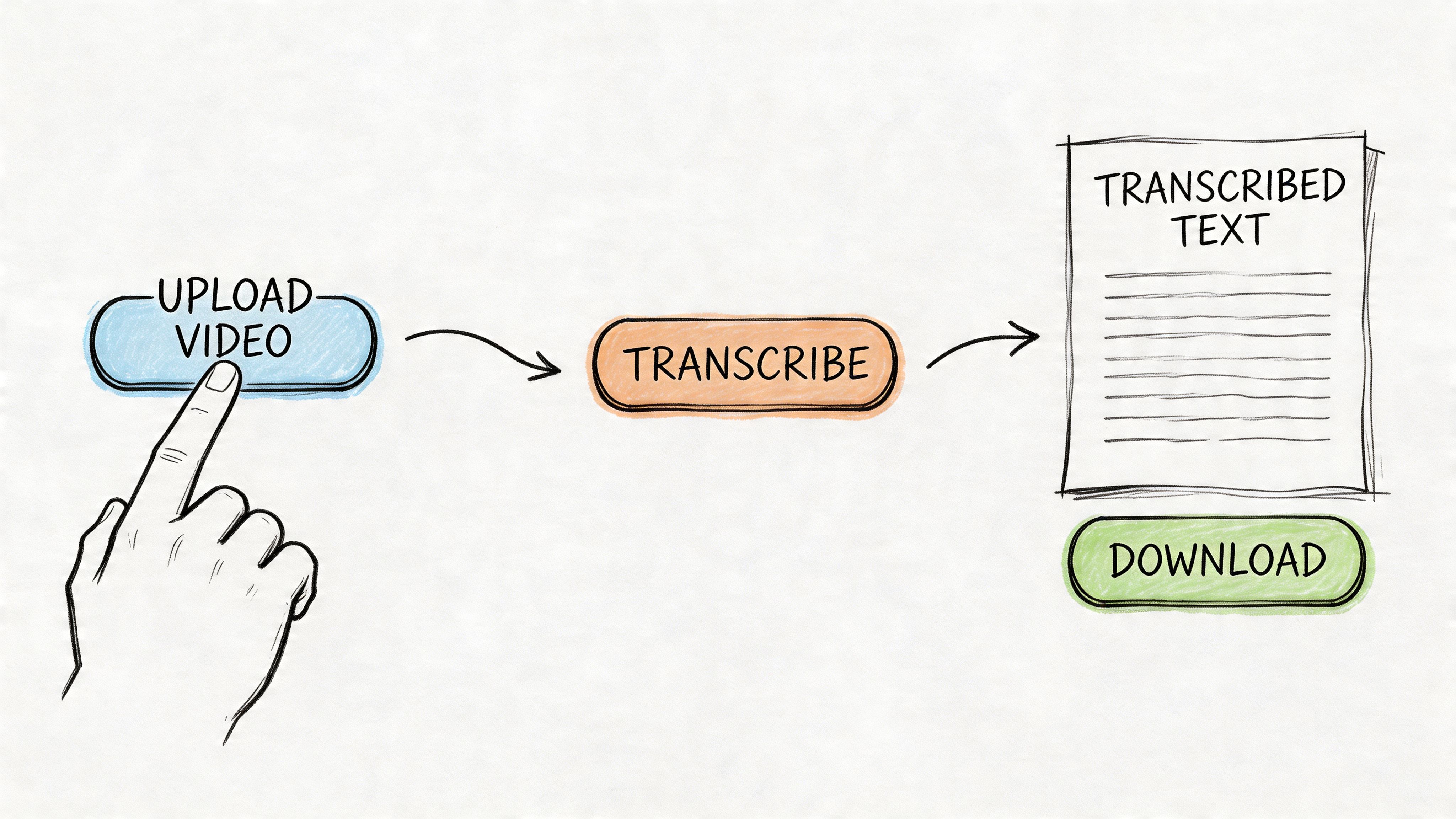
For a first pass, use a recording with one or two clear speakers. A meeting recap, interview, or lecture clip works better than a noisy event recording. You want to see the basic workflow succeed before you push the tool into harder audio.
Start with the simplest path
Most online tools give you two entry points:
- Upload a local file like MP4 or MOV.
- Paste a hosted video URL from a platform such as YouTube.
Modern video-to-text converters can reach 98% to 99.9% accuracy, process files up to 5GB, and leading platforms already serve 100K+ users for use cases like Zoom calls, YouTube videos, and podcasts, according to video transcriber platform benchmarks.
That doesn’t mean every file will land at the top end of that range. It means the basic workflow is mature enough that a new user can get a workable first draft quickly.
A practical first-run checklist
Before you click upload, check four things:
- The spoken language is obvious: If the tool guesses wrong, everything downstream gets worse.
- The file has audible speech: Background music-heavy videos often need cleanup first.
- You know the purpose of the transcript: Reading notes, captions, and legal review need different output formats.
- You keep the original file: You may want to rerun it with different settings.
If your source file has weak audio, it often helps to first extract the sound from a video and inspect the audio track on its own. That’s one of the fastest ways to catch hum, hiss, clipped speech, or one-sided call recordings.
What the first session usually looks like
After upload, most platforms process the video, isolate speech, and return an editable transcript. A good interface will also show timestamps and speaker turns without forcing you into a separate editing tool.
A practical example:
- You upload a recorded team meeting.
- The system detects English.
- It segments speakers into labeled turns.
- You skim for names, action items, and unclear passages.
- You export the transcript as plain text or subtitles.
That’s enough for many day-to-day jobs.
A quick product demo helps if you haven’t seen the workflow live yet:
A first transcript doesn’t need to be perfect. It needs to be editable, searchable, and structurally sound.
What to expect after processing
The common outputs are:
- Raw transcript text for reading and editing
- Speaker-separated transcript for interviews and meetings
- Timestamped transcript for video editing and compliance review
- Subtitle-ready files for publishing
If the tool also supports summaries or chapters, treat those as convenience layers, not replacements for checking the transcript itself. The transcript remains the source record.
For a first job, don’t over-configure. Upload, select the right language, enable speakers if more than one person is talking, and review the result. That gets most users from zero to a useful draft fast.
Optimizing Your Transcript For Maximum Accuracy
Once you’ve seen a basic transcript work, the next improvement doesn’t come from switching tools. It comes from controlling the conditions around the transcription. That’s the difference between “good enough to understand” and “good enough to publish, file, or quote.”
Professional AI transcription pipelines use transformer-based models and preprocessing such as noise reduction to achieve 90% to 96% accuracy, but background noise can increase word error rate by 20% to 30%, and speaker overlap can increase it by 15% to 25%, according to Choppity’s review of transcription pipeline behavior.
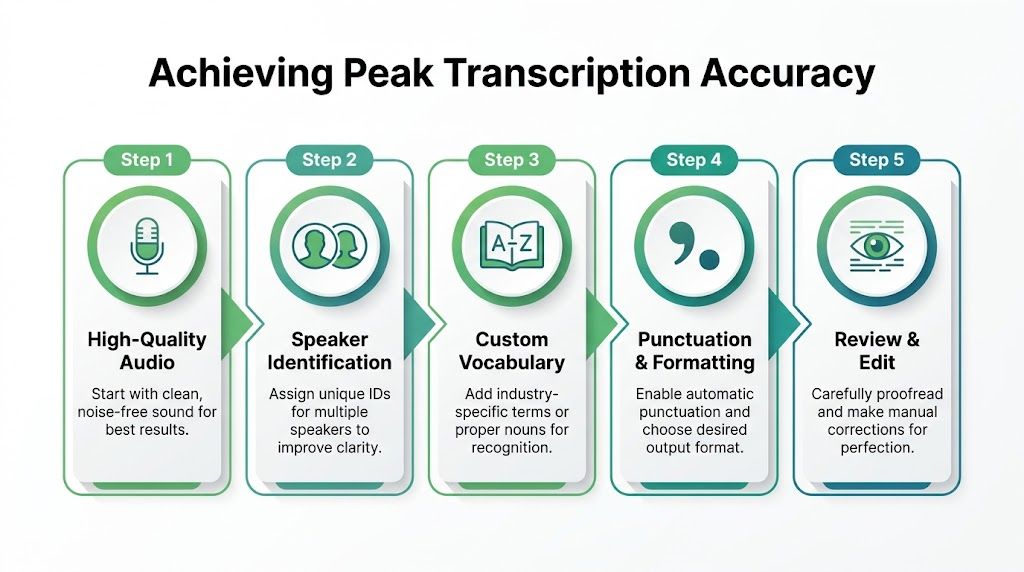
Fix the audio before you blame the model
Most bad transcripts start with bad source audio. Users often want the AI to compensate for issues that should have been handled earlier.
The biggest failure points are predictable:
- Room echo: Speech sounds distant, which hurts word boundaries.
- Cross-talk: Two people speak at once, and segmentation breaks down.
- Music beds: Intro tracks and background audio compete with speech.
- Mic imbalance: One speaker is loud, the other sounds far away.
- Clipping: Distorted peaks make even obvious words harder to decode.
If you can improve the file before upload, do it. Even a cleaned audio track with reduced noise and trimmed silence can make review much faster.
The settings that actually matter
Users often click every available toggle. That usually adds complexity without improving the result. Focus on the options that materially change transcript quality.
Language and dialect selection
Auto-detection is convenient, but it shouldn’t be your default for important recordings. If you know the language, set it manually. If the platform supports dialect selection, use it for region-specific pronunciation.
This matters most when the audio includes proper nouns, local place names, or mixed accents. A model that starts in the wrong language context can make cascading errors that are tedious to clean up later.
Speaker diarization
If more than one person is talking, turn on speaker diarization. That tells the system to separate voices into speaker turns. It won’t always know each person’s real name, but it can distinguish Speaker 1, Speaker 2, and so on.
This is especially useful for:
- Interviews
- Panel discussions
- Sales and support calls
- Team meetings
- Depositions and hearings
When diarization is off, the transcript may still be readable, but review becomes much slower because every correction requires you to infer who said what.
Field note: In meetings, diarization often saves more editing time than any other setting because it restores structure, not just wording.
Noise reduction and audio cleanup
If the platform offers noise reduction, use it selectively. It’s helpful when there is low-level hum, office noise, or air conditioning. It can be less helpful when aggressive filtering starts damaging quiet speech.
The right approach is practical:
- For steady background noise, enable cleanup.
- For already clean studio audio, leave it alone.
- For very poor recordings, preprocess outside the transcription tool if possible.
Custom vocabulary
This is one of the most underused features in professional transcription.
A generic language model may struggle with product names, legal citations, clinician surnames, pharmaceutical terms, sports rosters, or internal project names. If the tool lets you preload custom vocabulary, feed it the words that matter before processing.
Typical examples include:
- Company names and acronyms
- Guest names on a podcast
- Drug names in medical dictation
- Case references in legal recordings
- Technical product terms in demos
Custom vocabulary doesn’t replace review, but it reduces recurring mistakes in exactly the places where users care most.
Don’t skip the editor pass
Even with good settings, the transcript still needs a targeted review. The trick is not to reread every line equally. Review the high-risk parts first.
A practical editor pass usually goes in this order:
- Check the opening minute to confirm language and speaker separation.
- Search for names and jargon that often get misrecognized.
- Review overlaps where the conversation gets fast.
- Fix punctuation if the transcript will be published or quoted.
- Spot-check timestamps before exporting subtitles.
That approach is faster than treating the transcript like a manually typed document. You’re validating known weak points, not rewriting from scratch.
A working accuracy mindset
Accuracy isn’t one thing. A transcript can be excellent for internal search and still need work before compliance filing or public captions.
Use this simple frame:
| Goal | What matters most | Common setting priority |
|---|---|---|
| Internal notes | Speed and searchability | Language, basic punctuation |
| Interview transcript | Speaker separation and names | Diarization, custom vocabulary |
| Caption file | Timing and readability | Timestamps, punctuation, line review |
| Regulated workflow | Consistency and auditability | Manual language, review process, secure handling |
Users get better results when they stop asking, “What accuracy does this tool claim?” and start asking, “What kind of accuracy does this specific recording require?”
Generating Captions and Exporting Your Work
A transcript becomes useful when it leaves the editor in the right format. That’s where many users make an avoidable mistake. They export plain text when subtitles are needed, or they generate subtitle files when the primary need is a readable document for legal review, editorial quoting, or meeting notes.
The cleanest workflow is to make light corrections in the built-in editor first, then export once for each real use case. One version rarely fits everything.
Text transcript versus subtitle file
A plain transcript is for reading. A subtitle file is for synchronization.
That distinction matters because subtitle formats carry timing data. If you upload a plain TXT file to a video platform, the platform won’t know when each line should appear. If you upload SRT or VTT, it can align captions with the spoken audio.
Use a text document when the transcript supports writing, search, documentation, or records. Use subtitles when viewers need on-screen captions.
For social clips, short explainers, and repurposed video content, a dedicated best AI captions app can also be useful when the visual presentation of captions matters as much as the underlying transcript.
A practical export workflow
A typical export session looks like this:
- Correct names, obvious punctuation errors, and speaker turns.
- Decide whether the output is for reading or playback.
- Export one text-based version for archives or editing.
- Export one subtitle version for video platforms if needed.
- Open the exported file once before sharing it.
That last step catches a lot of problems. A subtitle file may technically export correctly but still need line-break cleanup. A DOCX may preserve speaker names better than a TXT, depending on the editor.
Choosing Your Transcript Export Format
| Format | Primary Use Case | Key Features |
|---|---|---|
| TXT | Quick notes, search, copy-paste drafting | Lightweight, easy to open anywhere, minimal formatting |
| DOCX | Formal review, team editing, comments | Better formatting control, easier collaboration in document tools |
| Record-keeping and fixed-layout sharing | Harder to alter casually, useful for circulation and archives | |
| SRT | Standard subtitles for video platforms | Timestamped caption blocks, broad compatibility |
| VTT | Web video captions | Timestamped subtitles with web-friendly support |
What works best in practice
TXT works when speed matters more than structure. It’s good for writers, researchers, and analysts who want to move the text into another tool immediately.
DOCX is a better choice when multiple people will review the transcript. Editors can add comments, legal teams can mark passages, and meeting owners can clean up action items without destroying the layout.
PDF is useful when you want a stable version for circulation or archiving. It isn’t ideal for heavy editing, but it prevents the “which version is final?” problem that appears in email chains.
SRT is the default subtitle format for many publishing workflows. If you’re uploading to YouTube or moving captions into a video editor, this is often the safe first export.
VTT is useful for web players and browser-based video setups. If your development team works with web-native video delivery, VTT may fit better than SRT.
Before you publish captions
Subtitles need a final watch-through. Don’t trust the file just because the transcript reads well in the editor.
Check these points:
- Timing: Lines should appear when the speaker starts, not late.
- Line breaks: Long subtitle lines become hard to read on small screens.
- Speaker switches: New speaker, new caption block where appropriate.
- Names and terminology: Public mistakes here are more visible than in a transcript document.
Captions are where accessibility, usability, and content distribution meet. That makes export quality more than a formatting decision.
Troubleshooting Common Transcription Problems
Most transcription failures are not random. They’re predictable, and they’re usually fixable. The problem is that users often treat a bad output as proof that the tool “doesn’t work” instead of diagnosing what went wrong in the audio, settings, or review process.
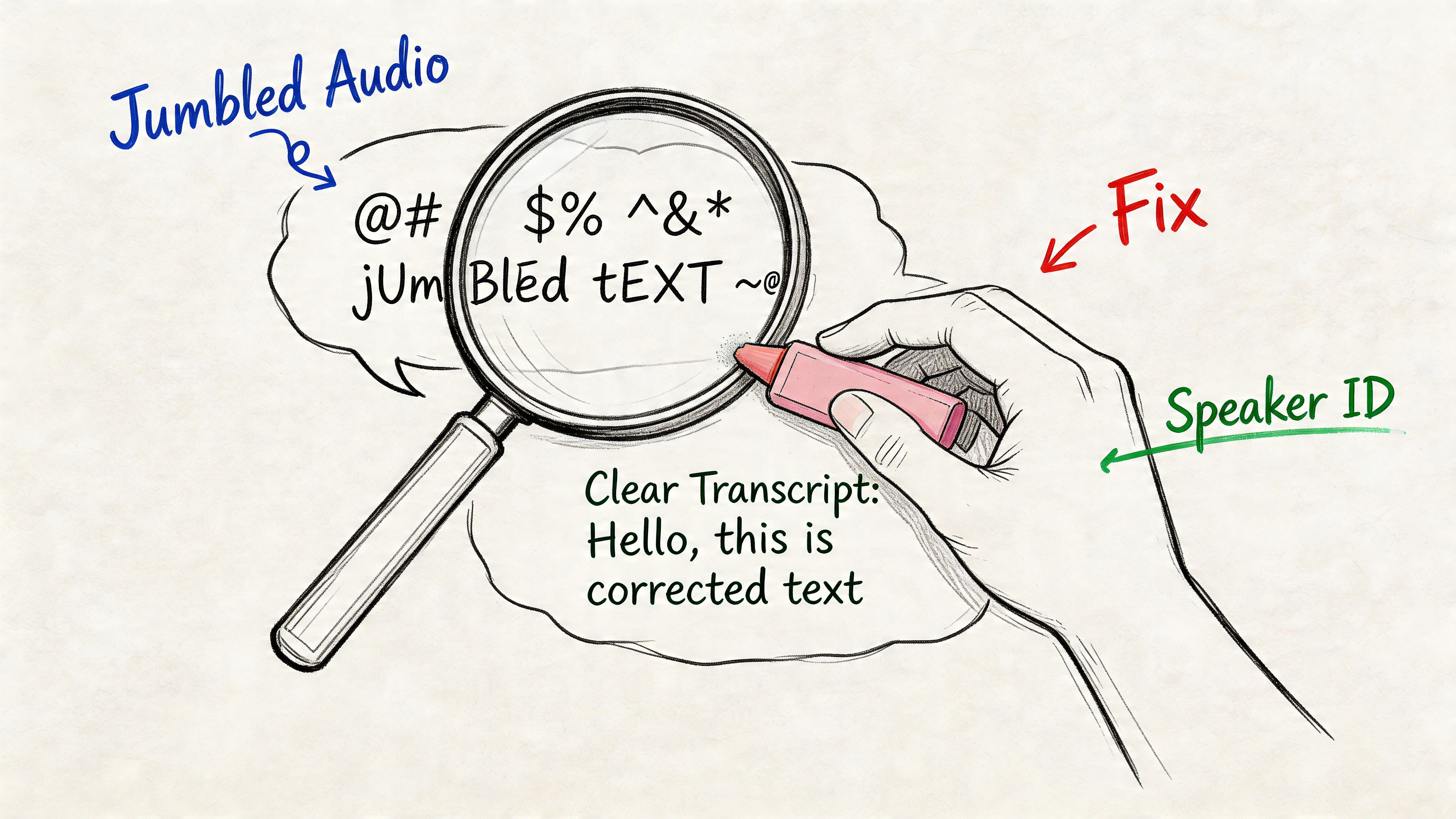
Many providers advertise 85% to 99.9% accuracy, but those claims are rarely defined, and real-world performance is heavily affected by background noise, accents, and multiple speakers, as noted in VEED’s discussion of video-to-text accuracy claims.
That’s why troubleshooting matters more than headline accuracy numbers.
When the transcript looks jumbled
A jumbled transcript usually points to one of three causes: poor audio, wrong language settings, or too many overlapping voices.
Start with the source:
- If the audio is noisy, clean it first or rerun with noise reduction enabled.
- If the language was auto-detected, set it manually.
- If several people interrupt each other, turn on diarization and expect a higher review burden.
This is common in contact center recordings, event footage, and newsroom audio pulled from field sources. The right expectation isn’t “zero edits.” It’s “a stable draft that can be corrected efficiently.”
When speaker labels are wrong
Speaker labeling errors frustrate users because the words may be mostly right while the conversation structure is wrong. That makes the transcript unreliable for quoting, note-taking, and meeting analysis.
A few practical fixes help:
Shorten the input if the meeting is long
If a recording has many speakers, split it into logical sections where possible. Long files with frequent interruptions are harder to diarize cleanly.
Improve turn-taking where you can
For live internal meetings, ask participants to avoid talking over each other during high-value moments like decisions, numbers, names, and action items. That doesn’t help with old recordings, but it improves future ones immediately.
Rename speakers during review
Even when a system only outputs Speaker 1 and Speaker 2, rename them in the editor as soon as identities are clear. That creates a more usable final document.
Treat speaker labels as metadata that needs review, not as guaranteed truth.
When names and technical terms keep breaking
This is the most common issue in legal, healthcare, engineering, and media workflows. General-purpose models are strong at conversational language. They’re less reliable with internal vocabulary that only your team uses.
The fix is usually process, not heroics:
- Build a reusable glossary for repeat clients or recurring topics.
- Keep a short list of common misspellings and check for them after each run.
- Review introductions carefully. Names are often established in the first minute.
- If a hearing, interview, or consultation includes critical terminology, do a focused correction pass before exporting.
Security and compliance are part of troubleshooting
A transcript can be technically accurate and still fail the job if it’s processed or shared in the wrong environment. That matters most for healthcare, legal, HR, customer service, and any organization handling sensitive recordings.
When choosing a provider, look for practical safeguards such as:
- GDPR alignment
- ISO 27001 certification
- End-to-end encryption
- Clear data handling policies
- Access controls for team workflows
Security is not a bonus feature. It shapes which recordings you can process online at all. If the file contains patient details, legal strategy, complaint calls, or personal identifiers, your review process has to include where the data goes and who can access it afterward.
A simple troubleshooting matrix
| Problem | Most likely cause | First fix to try |
|---|---|---|
| Garbled text | Noise or wrong language | Clean audio, set language manually |
| Mixed-up speakers | Overlap or too many voices | Enable diarization, split long files |
| Wrong names | No custom vocabulary or weak context | Add glossary, review intro sections |
| Bad captions | Timing or formatting issues | Recheck timestamps before export |
| Workflow risk | Weak privacy controls | Use a provider with documented compliance |
The practical position is this: most errors are manageable, but only if you stop treating transcription as magic. Good output comes from a disciplined workflow, not a single upload button.
For Developers Integrating Transcription Via API
The browser uploader is enough for one-off jobs. Product teams usually outgrow it fast. As soon as you need transcripts inside your own app, pipeline, support workflow, archive, or analytics system, the right question becomes how to integrate transcription as a service instead of as a manual step.
That’s where API design matters. A major gap in consumer-facing content is the lack of detail on API capabilities such as rate limits, PII redaction, real-time streaming, and security certifications like ISO 27001 or SOC 2, which are important for enterprise adoption, as noted in Happy Scribe’s discussion of missing enterprise detail.
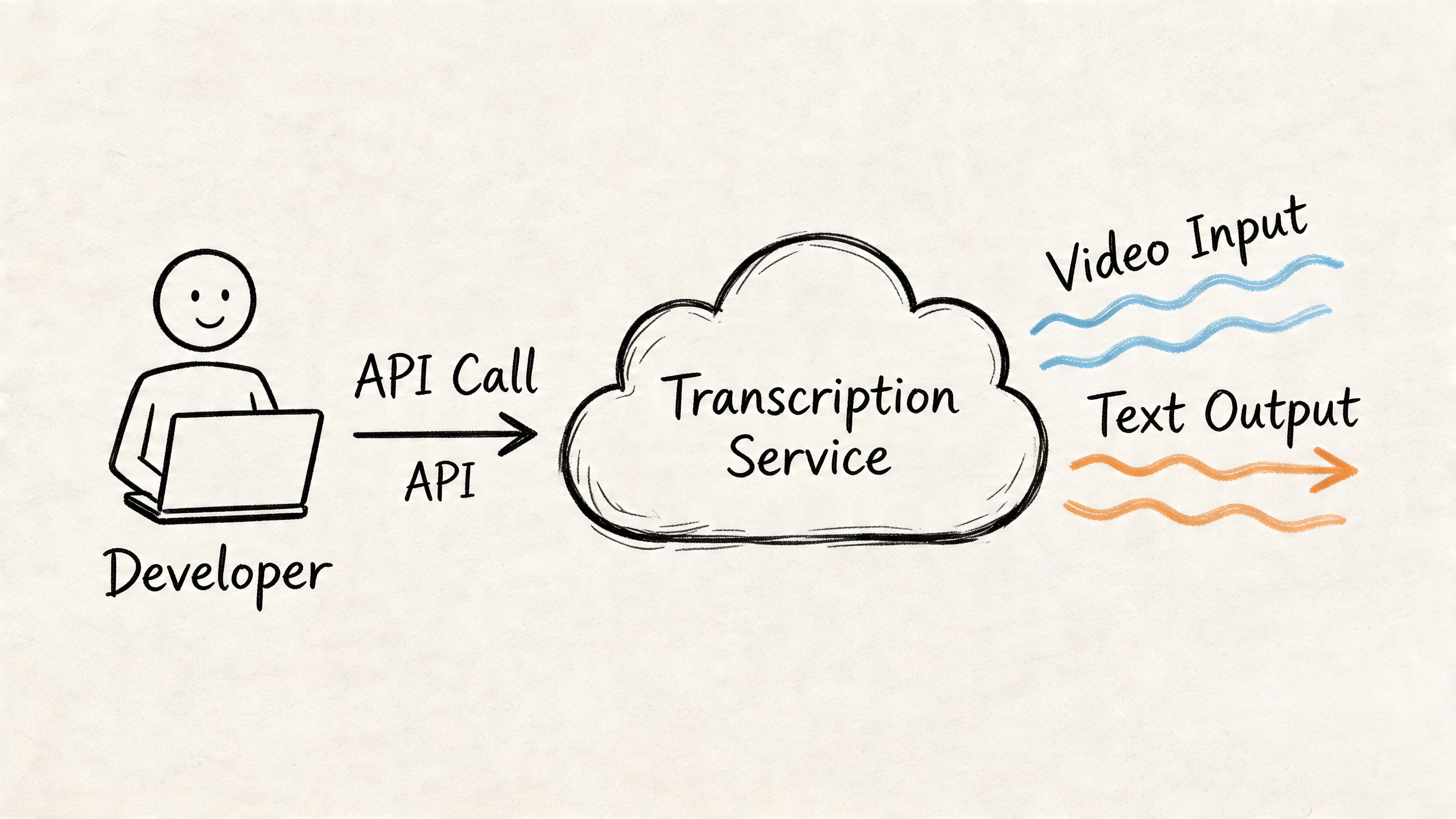
The integration model that works
Most production implementations follow one of two patterns:
Batch transcription
Best for uploaded files, call recordings, webinars, podcast episodes, and stored media libraries.
The flow is usually:
- User uploads media to your app.
- Your backend sends the file or file reference to the transcription API.
- The API returns a job ID.
- Your app polls for status or receives a callback.
- You store transcript text, timestamps, and speaker segments.
- Downstream features use the result for search, QA, captions, summaries, or compliance review.
Batch is operationally simple and resilient. If your users don’t need instant text while the speaker is still talking, start here.
Streaming transcription
Best for live captioning, agent assist, meeting intelligence, live broadcast support, and voice-enabled applications.
Streaming requires tighter engineering discipline because you’re handling low-latency audio transport, session state, reconnect logic, and partial transcript updates. It’s powerful, but it adds operational complexity quickly.
What to evaluate before you write code
An API spec can look impressive while still missing what real deployments need. Check these capabilities first:
- Speaker diarization: Needed for calls, meetings, and interviews
- Timestamps: Needed for playback sync, QA review, and subtitle creation
- Custom vocabulary: Needed for domain-specific terms
- PII redaction: Needed for regulated and customer-facing workflows
- Concurrency behavior: Needed for scale
- Security posture: Needed whenever recordings include sensitive data
If you’re comparing vendors or planning product work, a directory of tools that integrate transcription via API can be useful for seeing how transcription fits into broader automation workflows.
Basic implementation pattern in Python
The exact endpoint structure depends on the provider, but the pattern is consistent: authenticate, submit media, wait for completion, parse the response.
import requestsimport timeAPI_KEY = "your_api_key"headers = {"Authorization": f"Bearer {API_KEY}"}files = {"file": open("meeting.mp4", "rb")}data = {"language": "en","diarization": "true","timestamps": "true"}submit = requests.post("https://api.example.com/transcriptions",headers=headers,files=files,data=data)job_id = submit.json()["id"]while True:status = requests.get(f"https://api.example.com/transcriptions/{job_id}",headers=headers).json()if status["status"] == "completed":print(status["transcript"])breakif status["status"] == "failed":raise Exception("Transcription failed")time.sleep(3)This is enough for a first backend integration. In production, add retry logic, structured error handling, logging, and storage for transcript artifacts.
Basic implementation pattern in JavaScript
For Node or browser-assisted workflows, the sequence is similar.
async function submitTranscription(file) {const formData = new FormData();formData.append("file", file);formData.append("language", "en");formData.append("diarization", "true");formData.append("timestamps", "true");const submitRes = await fetch("https://api.example.com/transcriptions", {method: "POST",headers: {Authorization: "Bearer YOUR_API_KEY"},body: formData});const job = await submitRes.json();let complete = false;while (!complete) {const statusRes = await fetch(`https://api.example.com/transcriptions/${job.id}`,{headers: {Authorization: "Bearer YOUR_API_KEY"}});const status = await statusRes.json();if (status.status === "completed") {console.log(status.transcript);complete = true;} else if (status.status === "failed") {throw new Error("Transcription failed");} else {await new Promise((r) => setTimeout(r, 3000));}}}The code isn’t the hard part. The hard part is deciding what your app does with the transcript after it arrives.
Features that matter in production
Raw text is only one output. Mature teams usually need a structured response they can route into different product features.
Common production use cases include:
- Searchable archives: Index transcript text with timestamps.
- Support QA: Review speaker turns and flag moments for supervisors.
- Content operations: Generate subtitle files and editorial drafts.
- Compliance workflows: Redact sensitive data before human review.
- Analytics pipelines: Extract entities, topics, or sentiment from speech.
One practical option for this is the Vatis Tech Speech-to-Text API, which supports file and streaming transcription, custom vocabulary, speaker diarization, timestamps, and PII redaction. Those are the kinds of capabilities that determine whether an integration stays a prototype or becomes part of a reliable production workflow.
Security, deployment, and scaling choices
Developer evaluations often get more serious than buyer guides suggest.
Ask these questions early:
Where is the data processed
Cloud may be fine for general media workflows. Some teams need private cloud or on-premise deployment because of contract terms, regulated data, or internal policy.
What happens under load
If your workload spikes when call batches arrive or users upload webinar archives all at once, concurrency behavior matters. Slow queues can break downstream SLAs even when transcript quality is good.
Can sensitive information be handled automatically
For support, healthcare, and legal use cases, PII redaction can’t be an afterthought. If agents speak account details, addresses, or personal identifiers, the system should help remove or mask them before broader access.
Enterprise transcription succeeds when engineering, security, and operations agree on the same workflow. Accuracy alone won’t carry the deployment.
A practical rollout path
Teams usually get the best results with a staged rollout:
| Stage | What to build | What to validate |
|---|---|---|
| Pilot | Batch upload and transcript retrieval | Transcript usefulness, core error handling |
| Workflow fit | Store timestamps, speakers, and exports | User adoption in real tasks |
| Security review | Access controls, redaction, retention | Compliance alignment |
| Production scale | Queueing, concurrency, monitoring | Stability under volume |
| Advanced features | Streaming, analytics, automation | Business impact in downstream systems |
The key is not to overbuild on day one. Start with a narrow internal use case, prove the transcript can support a real workflow, then layer on streaming, redaction, search, and automation where they help.
If you need a practical starting point, Vatis Tech offers both an online workflow for converting video to text and an API path for teams that need transcripts inside products and operations. It’s a sensible way to move from a single uploaded file to a secure, scalable transcription workflow without rebuilding the process each time.