
TABLE OF CONTENTS
Experience the Future of Speech Recognition Today
Try Vatis now, no credit card required.
You've got a YouTube link and a simple goal. Turn it into an MP3 file you can keep, move, edit, or listen to offline.
That sounds straightforward until you try it. Some tools are fast but messy. Some are safer but need setup. Some preserve audio better. Some aren't a good idea at all if the content is copyrighted and your use case is professional.
The practical way to approach a youtube link to mp3 file workflow is to start with the end goal, not the tool. If you just need something for personal offline listening, your tolerance for friction is different from a journalist clipping an interview, a researcher archiving a lecture, or a legal team handling recorded evidence. The same YouTube link can lead to very different workflows depending on what you need after the download.
Why You Need a Plan for YouTube Audio
A common scenario goes like this. You find a lecture that would be easier to hear on a commute, a long interview you want to revisit away from the screen, or a panel discussion with a few key quotes buried inside an hour of video. The instinct is to search for the fastest converter, paste the link, click download, and move on.
That works sometimes. It also goes wrong often enough that a little planning saves time.
The first issue is legality. YouTube's Terms of Service prohibit downloads without permission, and the platform issued over 1.5 million copyright strikes in 2025 alone, while 40% of converters host pirated content, according to this legal and safety overview. If you're pulling copyrighted material into a newsroom, classroom, agency, or regulated environment, that's not a small footnote. It's part of the workflow decision.
The second issue is tool quality. A quick browser converter might be fine for a throwaway listen. It's a poor fit if you care about clean metadata, predictable file output, or repeatable batch work.
The third issue is that many people don't need an MP3. They need the spoken information inside the video. If your real job is clipping quotes, summarizing a briefing, or pulling citations from an interview, audio extraction may only be the first step.
Practical rule: Don't choose a converter because it's first in search results. Choose it based on what you need to do with the audio after it lands on your device.
There's also a broader content workflow angle. If you manage creator links, podcast references, or campaign assets, it helps to think about improving engagement with YouTube link management before you start copying links into random tools. A cleaner link workflow reduces friction long before the audio stage.
Comparing Conversion Methods The Right Tool for the Job
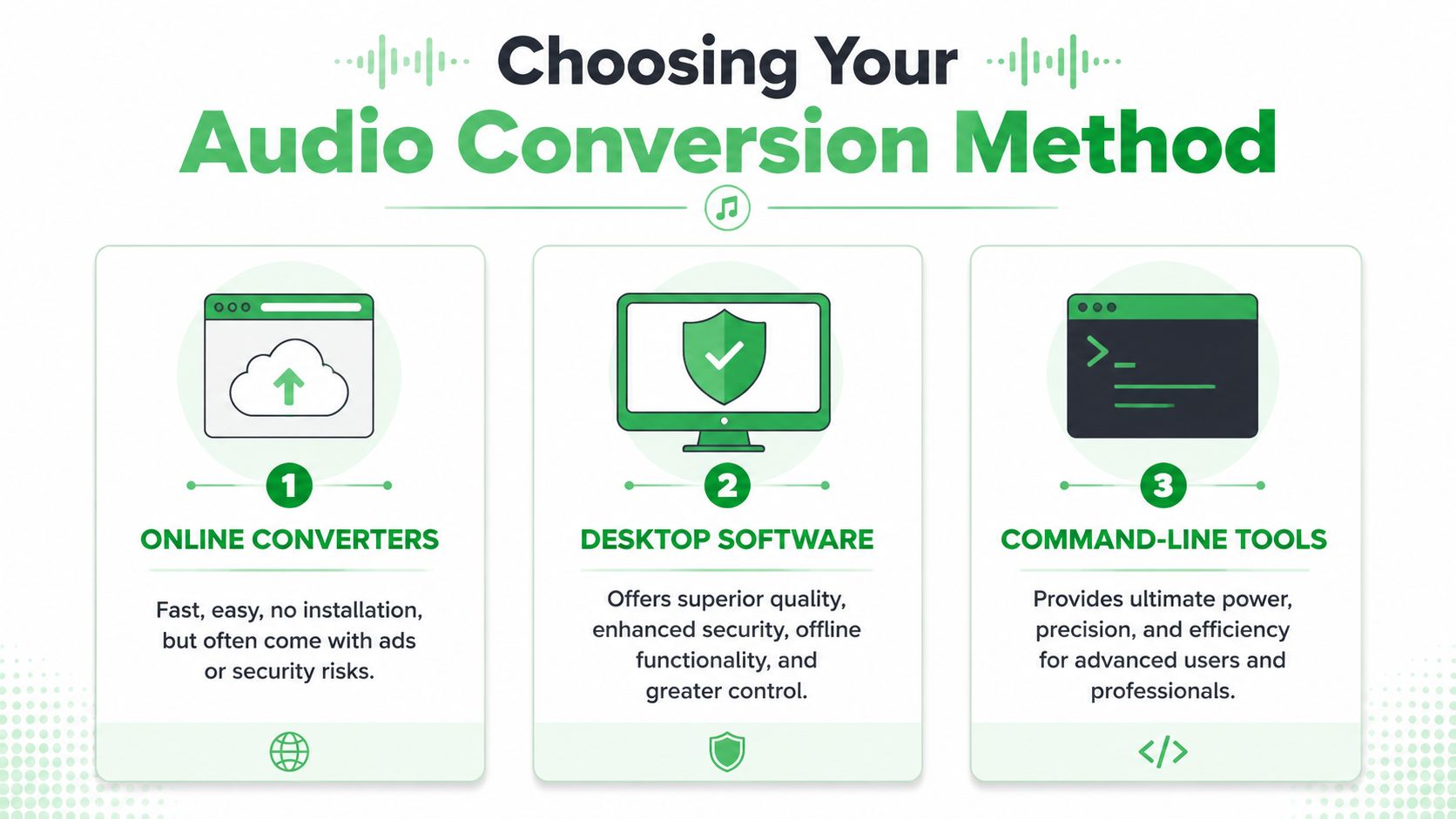
Three paths dominate this space. Online converters, desktop software, and command-line tools. Each solves a different problem. The mistake is treating them as interchangeable.
What each method is good at
Online converters win on convenience. You paste a URL into a webpage, wait, and download a file. No install. No learning curve. They're useful when speed matters more than control.
Desktop software gives you a more stable environment. You usually get better output controls, fewer deceptive UI tricks, and local processing once the source file is on your machine. That matters when you need reliability and repeatability.
Command-line tools sit at the top for power users. They're less friendly, but they're excellent when you want scripting, playlists, metadata handling, or a workflow that doesn't rely on a fragile web interface.
YouTube to MP3 Method Comparison
| Method | Ease of Use | Safety & Privacy | Max Quality | Best For |
|---|---|---|---|---|
| Online converters | Very easy | Lowest, varies widely by site | Usually acceptable for casual use | Quick personal listening |
| Desktop software | Moderate | Better, especially with local conversion | Better control over output settings | Regular use, editing, archiving |
| Command-line tools | Lowest for beginners | Strong if you trust your setup | Best access to source streams | Power users, batch jobs, transcription prep |
Match the method to the goal
Use this shortcut instead of overthinking it:
- Need speed: Use an online converter, but only for non-critical jobs and only with caution.
- Need consistency: Use desktop software like VLC where you can control format and keep the process local.
- Need scale or precision: Use a command-line tool.
Casual listening and professional audio prep are not the same task. The tool should reflect that.
One more practical point. If your end goal is searchable dialogue, subtitle prep, or a transcript-ready file, don't default to the easiest converter. The easiest method often creates the most cleanup later.
Using Online YouTube to MP3 Converters Safely
Online converters are popular because they remove almost all friction. Open a site, paste the YouTube URL, choose MP3, click convert, download. For a lot of people, that's the entire appeal.
The problem is that the same simplicity makes it easy to get tricked.
What a safe session looks like
If you're going to use a browser-based converter, keep the job narrow. One file. One session. No signups. No extensions. No “helper app.”
A sensible workflow looks like this:
- Copy the exact YouTube URL from the address bar or share menu.
- Paste it into the converter field and wait for the title or preview to populate.
- Choose MP3 output if that's really the format you need.
- Download only the media file. If the site offers an installer, back out.
- Check the file extension immediately before opening anything.
Red flags that should stop you
Most bad converter sites give themselves away. The trick is noticing the pattern before you click.
- Pushy browser prompts: If the site asks you to allow notifications, leave. That has nothing to do with audio conversion.
- Extension requests: A converter doesn't need a browser add-on to save one audio file.
- Fake virus warnings: Pages that simulate a security alert are trying to rush you into the wrong click.
- Multiple download buttons: If the page has several large buttons, assume only one is real.
- Unexpected file types: An MP3 job should end with an audio file, not an installer or compressed app package.
If a site makes you solve three problems before getting one audio file, it's the wrong site.
How to reduce risk when you still need a quick conversion
There are a few habits that make online conversion less risky without pretending it's clean or ideal.
- Use a separate browser profile: Keep your normal browsing session isolated from whatever trackers or prompts the converter throws at you.
- Don't log in anywhere in the same tab set: Avoid mixing converter use with email, storage, or work apps.
- Check the download name before opening it: Messy filenames aren't dangerous by themselves, but they often signal a low-quality pipeline.
- Reserve this method for non-critical audio: Don't use browser converters for evidence, source material, or anything you need to defend later.
There's also a rights question that people skip. If you're downloading music from YouTube for use in a video, podcast, or social clip, attribution and licensing matter as much as conversion. For creators working with copyright-safe music, this guide on how to attribute NCS tracks correctly is worth reading before you publish anything.
When online tools are still the right answer
Despite the problems, browser converters do have a place. They're useful when:
- You need a fast one-off file
- You're on a machine where you can't install software
- The audio isn't business-critical
- You can tolerate rough metadata and limited controls
For anything beyond that, move to desktop software.
Reliable Desktop Software for Better Quality
If you convert YouTube audio more than occasionally, desktop software is the point where the process starts feeling controlled instead of improvised. You get fewer ads, better output settings, and a workflow you can repeat.
VLC is the obvious example because it's widely available and already installed on a lot of machines.
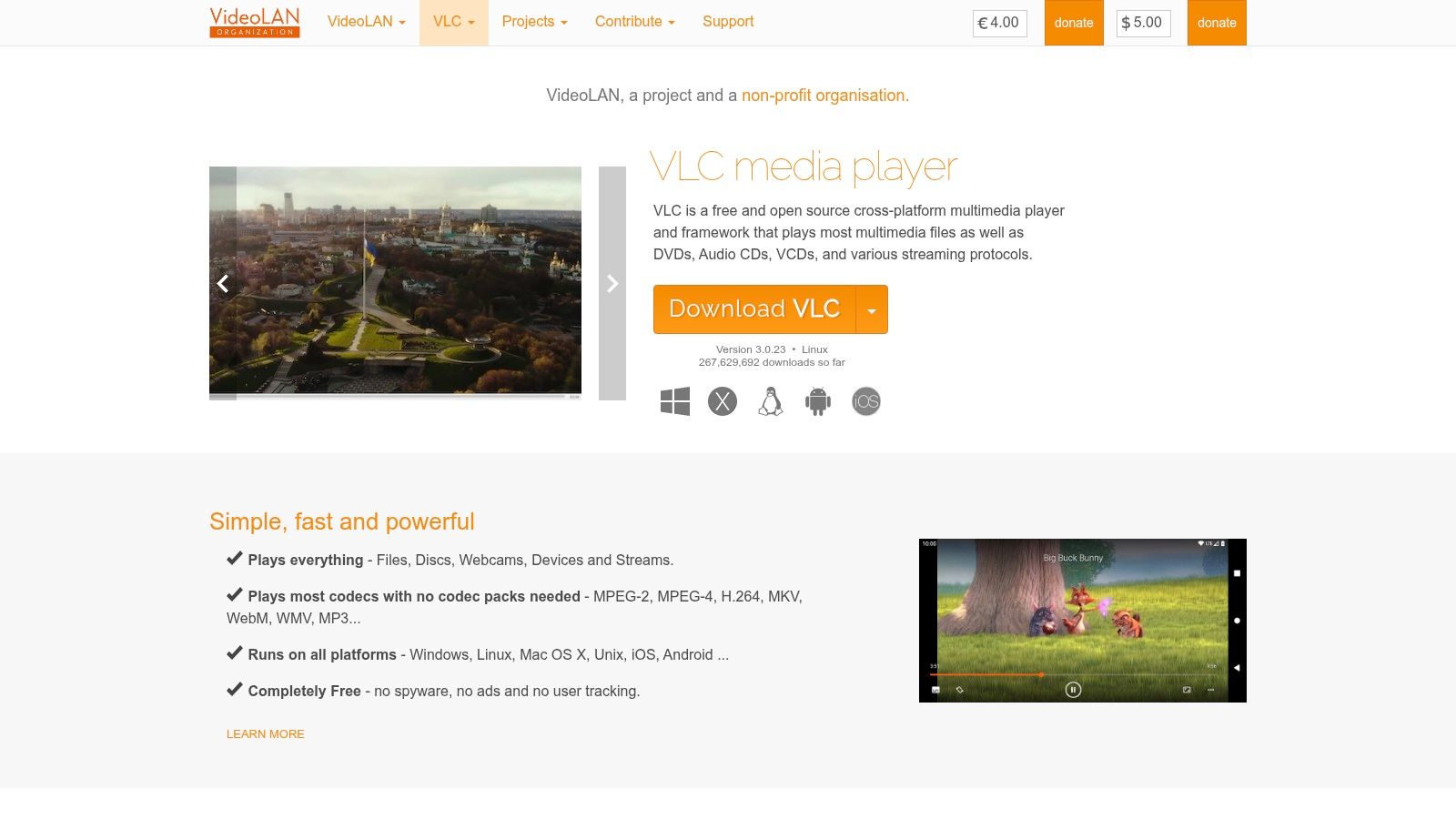
Using VLC Media Player's network stream extraction can achieve a 95% success rate on standard videos, and pre-downloading the video before converting it locally reduces errors from YouTube's throttling by 40%, according to this VLC workflow guide.
A practical VLC workflow
The most reliable approach isn't usually pasting a live YouTube URL straight into VLC. It's downloading the video first with a trusted method, then converting the file locally. That gives you more predictable results and better codec control.
A straightforward process looks like this:
- Get the source video file onto your machine using a method you trust.
- Open VLC and go to Media, then Convert/Save.
- Add the downloaded file instead of a live YouTube URL.
- Choose an audio profile, typically MP3 if compatibility matters most.
- Adjust codec settings if needed, such as bitrate and channel layout.
- Set the destination filename and folder before starting the conversion.
Why this works better than browser tools
The value of VLC isn't just that it converts. It lets you control the output in ways online tools usually hide.
- Bitrate control: You can choose a sensible target for speech or music instead of accepting whatever the website gives you.
- Channel control: Stereo and mono choices matter when you're optimizing for playback versus transcription.
- Predictable filenames: That sounds minor until you're handling many files.
- Local processing: Once the file is on your machine, you're not trusting a converter site to handle the transformation.
If you need to clean up the source video before audio extraction, this guide on how to trim an MP4 video is a useful precursor step. Trimming first can save time and produce a smaller, cleaner output.
A good default setup
For spoken-word content like interviews, lectures, and webinars, I'd keep the setup simple:
- Format: MP3 for broad compatibility
- Channels: Mono if the source is mostly speech and file size matters
- Bitrate: Use a moderate setting unless you have a reason to push higher
- Destination: Save into a dedicated folder for source-derived audio
Local conversion is slower to set up once. It's faster to trust every time after that.
Here's a visual walkthrough if you want to see the interface in action:
Where VLC falls short
VLC is solid, but it's not perfect.
It's less convenient than a browser page for one-off jobs. It also isn't the best option if you want advanced automation, embedded metadata workflows, or scripted playlist handling. That's where command-line tools pull ahead.
Advanced Audio Extraction with Command-Line Tools
If desktop software is the stable middle ground, command-line tools are the professional end of the spectrum. They're built for repeatability. They're scriptable. They avoid the visual clutter and guesswork of online converters.
The tool that matters most here is yt-dlp.

According to this yt-dlp extraction guide, the command-line tool yt-dlp allows for the highest fidelity audio extraction by directly accessing YouTube's source streams. Using yt-dlp -x --audio-format mp3 --audio-quality 0 targets the best possible variable bitrate, and it can be paired with FFmpeg for advanced resampling.
The command most people actually need
If you want a copy-paste starting point, use:
yt-dlp -x --audio-format mp3 --audio-quality 0 [YOUTUBE_URL]
That command does four useful things:
-xtells yt-dlp to extract audio only--audio-format mp3converts the output to MP3--audio-quality 0targets the best available variable bitrate setting[YOUTUBE_URL]is your source link
Why technical users prefer this path
The gain isn't just output quality. It's control.
You can queue multiple jobs, feed a list of links from a text file, preserve metadata, and fit the command into a larger media workflow. If you handle recurring interviews, channel archives, or newsroom ingest, those things matter more than a polished web interface.
A few practical uses:
- Playlist work: Add playlist support when you need more than one file.
- Metadata handling: Keep title and artist information attached to the output where available.
- Pre-transcription prep: Pair yt-dlp with FFmpeg to shape the audio for downstream analysis.
- Automation: Drop the command into scripts so your team isn't doing repetitive manual steps.
What trips people up
The command line is precise. That's the strength and the trap.
Common failure points include outdated installs, restricted videos, and trying to use one command for every type of source. If you're technical, those are manageable. If you hate terminals, you'll feel the friction immediately.
The command line pays you back when you do the same task often. It's overkill when you just need one file before lunch.
For users who want a broader workflow around source separation and cleanup, this companion guide on how to extract the sound from a video fits naturally alongside a yt-dlp setup.
When to choose yt-dlp over VLC
Pick yt-dlp when you care about one or more of these:
- You want the best available source access
- You need batch or playlist processing
- You work comfortably in terminal environments
- You're building a repeatable content pipeline
If that isn't you, VLC is easier. If that is you, browser converters stop making sense very quickly.
Beyond MP3 A Smarter Path for Professional Use
A lot of people search for a youtube link to mp3 file because they assume the file is the deliverable. In professional work, it usually isn't.
The MP3 is often just a temporary container. The actual deliverable is the quote, the transcript, the chapter markers, the summary, the evidence review, the searchable archive, or the set of clips you can hand to someone else. Once you frame the task that way, the workflow changes.
The 320kbps claim most people should ignore
Many converter sites advertise 320kbps MP3 as if that guarantees premium quality. That sounds attractive and often means very little.
Technical analysis shows YouTube's source audio is typically compressed to 128-192kbps Opus/AAC, and re-encoding to a higher bitrate doesn't add actual quality and can introduce artifacts, according to this technical breakdown of converter quality claims. In plain terms, if the source wasn't that rich to begin with, exporting a bigger MP3 won't create detail that wasn't there.
That matters for anyone doing transcription, verification, or content analysis. A bloated file can be less useful than a cleanly handled source stream.
Ask what you really need from the YouTube link
For casual listening, an MP3 is still a perfectly reasonable endpoint.
For professional use, ask a different set of questions:
- Do you need audio playback, or do you need the words?
- Do you need to quote, search, or summarize the content?
- Do you need a workflow that fits compliance requirements?
- Do you need to share the output with editors, attorneys, producers, or analysts?
If the answer centers on words and information, downloading an MP3 may add steps rather than remove them.
Better outputs for professional teams
A text-first workflow is often more useful than an audio-first one.
Instead of spending time converting, renaming, storing, and then transcribing an MP3, many teams are better served by link-based transcription and structured outputs such as timestamps, speaker labels, and editable text. That's especially true when the material comes from interviews, hearings, briefings, webinars, meetings, or public statements.
A related format point matters here too. If you already have higher-quality sources like FLAC and need to deliver MP3s for compatibility, it helps to understand the trade-offs first. This practical piece on how to convert FLAC audio to MP3 is a good reference for that broader audio workflow.
For research, journalism, legal review, and media operations, the best output is often not a file you listen to. It's a file you can search.
The smarter decision framework
Use this simple lens:
| End goal | Better path |
|---|---|
| Offline personal listening | MP3 conversion can be enough |
| Re-editing or clipping audio | Desktop or command-line extraction |
| Transcript, captions, summaries, review | Text-first processing is usually better |
| Compliance-sensitive environments | Avoid random converter sites and prioritize controlled workflows |
The biggest mistake in this space is optimizing for immediate download instead of downstream usefulness. Fast isn't always efficient. An MP3 can feel like progress while subtly creating more cleanup, more storage, and more legal exposure than the job required.
If your real goal is to turn YouTube speech into something searchable, editable, and useful, Vatis Tech is the cleaner path. Paste a link, get an accurate transcript with timestamps, speaker labels, summaries, and exports for real work. It's a better fit for journalism, legal review, research, support operations, and any workflow where the words matter more than the MP3.