TABLE OF CONTENTS
Experience the Future of Speech Recognition Today
Try Vatis now, no credit card required.
A solid Zoom meeting transcription does more than just turn spoken words into text. It creates a searchable, actionable record of every virtual call you have. This process converts the audio from a Zoom meeting into a written document, either as it happens or from a recording.
This guide will give you practical steps and clear examples to move from basic transcription to creating a powerful knowledge base from your meetings.
Why Accurate Zoom Meeting Transcription Is No Longer Optional
In our remote-first world, Zoom meetings are the new conference rooms. It's where we brainstorm, make big decisions, and get crucial feedback from clients. But what happens to all that valuable information once the call ends? Too often, it just vanishes.
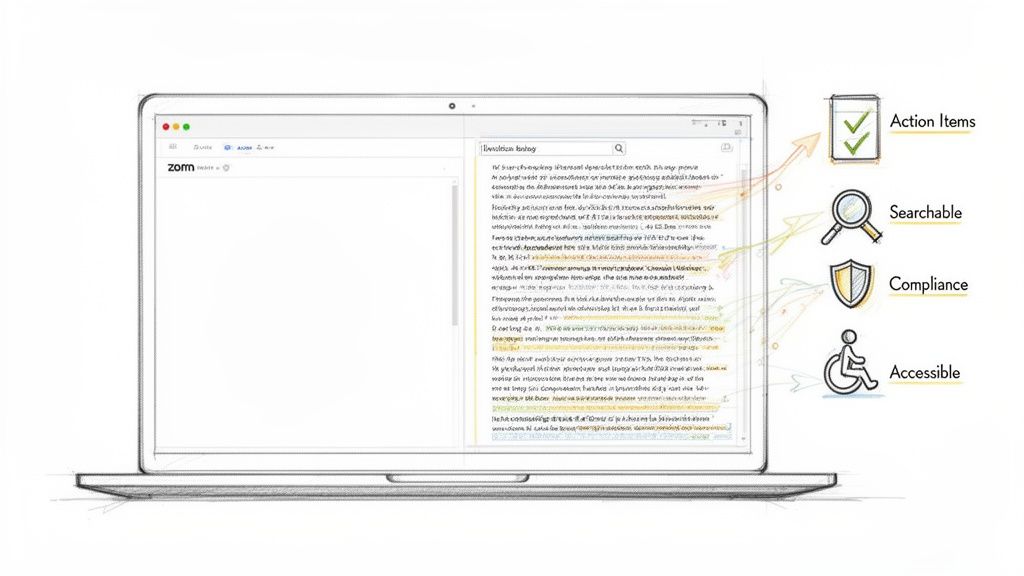
Simply having the meeting isn't enough anymore. The real win is capturing the conversation and turning it into something you can actually use. A precise transcript makes sure every single detail—from a small client ask to a complex technical spec—is perfectly documented.
Create a Searchable Knowledge Base
Think about all your project kickoffs, strategy sessions, and client check-ins. These calls are overflowing with insights, solutions, and company knowledge. An accurate transcript transforms this spoken data into a permanent, searchable library for your entire team.
Instead of a team member trying to remember a specific detail from a meeting three months ago, they can just search the transcript. The impact on efficiency is huge.
- Fast-Track New Hires: A new marketing hire can review transcripts of the last quarter's campaign planning meetings. They'll understand the strategy, key decisions, and team dynamics in a few hours, not weeks.
- Keep Your Expertise: When a lead engineer leaves, their knowledge doesn't walk out the door. Transcripts of their technical design meetings preserve their problem-solving logic for the next person to take over.
- Find Instant Answers: A project manager can search for "deadline" or a specific feature name to instantly find the exact moment it was discussed and agreed upon. No more scrubbing through hour-long videos.
The average employee spends hours in meetings each week. Without transcripts, most of what's said is forgotten almost immediately. Accurate transcription is the only way to retain 100% of that value.
Ensure Project Alignment and Accountability
Miscommunication is a project killer. A vague action item or a misunderstood deadline can send a whole team down the wrong path, burning time and money. Transcripts eliminate that ambiguity.
When you have a written record of who agreed to what, accountability becomes straightforward. The debate over "who said what" is over.
Practical Example:
A project manager leads a kickoff call with a client. Afterward, they use the transcript to build the project plan.
- Before Transcription: The PM's notes say, "Client wants a new reporting dashboard." This is vague.
- With Transcription: The transcript quotes the client: "We need a dashboard that shows daily user engagement, broken down by region, and it must be exportable to CSV. We need a first draft by EOD Friday."
The transcript provides the specific requirements and deadline, serving as the single source of truth if questions arise later. It keeps everyone on track and stops disputes before they start.
Drive Accessibility and Inclusion
Transcription isn't just a productivity tool; it’s a pillar of an inclusive workplace. It’s essential for team members who are deaf or hard of hearing, ensuring they can participate fully.
But the benefits extend further:
- Non-Native Speakers: Team members who speak English as a second language can review the transcript at their own pace, looking up unfamiliar terms and ensuring they grasp every nuance.
- Different Learning Styles: Some people absorb information better by reading. Transcripts cater to them, allowing for deeper comprehension.
- Flexible Participation: Anyone who had to step away from a meeting or simply zoned out for a moment can quickly scan the text to catch up without interrupting the flow.
Providing transcripts demonstrates a commitment to making information accessible to everyone, fostering a more equitable culture where every voice is valued.
Activating and Using Zoom’s Built-In Transcription
Getting started with Zoom meeting transcription is straightforward. Zoom’s own audio transcript feature is a good entry point, especially for internal meetings where perfect accuracy isn't critical.
This native tool is bundled with certain paid plans (Business, Education, or Enterprise) and works by automatically processing the audio from any meeting you record to the cloud.
Enabling Audio Transcripts as an Account Administrator
If you’re the admin for your organization's Zoom account, you can enable transcription for everyone, specific groups, or lock the setting to enforce it as a company-wide standard. This ensures consistency.
Here are the step-by-step instructions:
- Sign in to the Zoom web portal with your admin credentials.
- In the navigation menu, click Account Management, then select Account Settings.
- Click the Recording tab.
- Navigate to the Cloud recording section and locate the Audio transcript setting.
- Verify that the setting is enabled. If it’s disabled, click the toggle to turn it on.
- (Optional) Click the lock icon to make this a mandatory setting for all users in your account. This prevents individual users from turning it off.
Once enabled, Zoom will automatically generate a transcript file every time a user records a meeting to the cloud.
Activating Transcription for Your Own Meetings
For individual hosts, you can turn this on for your own meetings, provided your account admin hasn't locked the setting.
The steps are nearly identical:
- Sign in to your personal Zoom account on the web.
- In the left-hand navigation panel, click Settings.
- Click the Recording tab.
- Scroll to the Audio transcript setting and ensure the toggle is enabled.
By enabling this, you're instructing Zoom to transcribe the audio of any meeting you record to the cloud. It's a "set it and forget it" feature that adds value without any extra effort during the meeting.
Zoom's native AI transcription is solid for clear conversations. Its engine generally has a decent Word Error Rate (WER) and can create a usable record of your meeting audio.
Accessing and Using Your Transcript File
After your meeting ends and the cloud recording has processed (this can take some time), Zoom will send you an email notification. When you access your recordings, you'll find the transcript saved as a .vtt file.
VTT (Web Video Text Tracks) is a simple text file format that includes not just the words spoken but also timestamps for each phrase. This is the standard for displaying captions on web videos.
You can download the VTT file and open it with any text editor (like Notepad on Windows or TextEdit on Mac) to read, copy, or search for keywords. For more advanced tips, check out our guide on how to transcribe a Zoom meeting with more free tips.
Knowing When to Upgrade to a Professional Transcription Tool
Zoom’s native transcription is fantastic for casual meetings and internal updates. It captures the gist of a conversation and leaves you with a basic, searchable record.
But what happens when "good enough" isn't? There are clear moments when the stakes are too high for a basic transcript, and you need the precision of a professional tool.
The cracks in built-in tools appear under pressure. Heavy accents, specialized jargon, or cross-talk in a busy meeting can turn a useful record into a confusing jumble of text. When every word matters, those small errors become massive liabilities.
Pinpointing the Breaking Point
Recognizing when you’ve outgrown a basic tool is the first step. It happens the moment the cost of a mistake outweighs the cost of a better solution.
Consider these practical scenarios where an upgrade is essential:
- Legal Depositions and Client Contracts: In a legal context, one wrong word ("can" vs. "can't") can completely alter meaning. You need a court-ready transcript with precise speaker labels and timestamps. There is zero room for error.
- Medical Consultations and Research: For telehealth or clinical research, transcription accuracy is directly tied to patient safety and HIPAA compliance. A misheard dosage or symptom could have serious consequences.
- Technical Product Demos: When demonstrating a complex software product to a potential enterprise client, every technical term must be captured correctly. A transcript full of errors looks unprofessional and undermines credibility.
- Multilingual Global Sales Meetings: If your team is closing a deal with international partners, you need a tool that handles diverse accents flawlessly. Professional services are trained on vast datasets to achieve superior accuracy with non-native English speakers.
The AI meeting transcription market is exploding as remote work becomes permanent, projected to jump from $3.86 billion in 2026 to $29.45 billion by 2034. But there’s a big gap: while 54% of employees want post-meeting summaries, only 39% actually get them. This is a need that professional tools, with their 88-93% accuracy and advanced features, are designed to fill.
Adopting a Practical Hybrid Strategy
Upgrading doesn't have to be an all-or-nothing decision. A smart, cost-effective approach is a hybrid model.
- Use Zoom's native transcription for: Daily stand-ups, informal team huddles, and low-stakes internal brainstorming. It's included in your plan and is perfectly adequate for these uses.
- Use a professional service for: High-stakes meetings with clients, legal weight, or complex technical details. This gives you bulletproof accuracy when you need it most.
Before committing, it's a good idea to experiment with some free video transcription tools to understand the differences in quality and features.
Comparing Your Options Clearly
When weighing Zoom's default against a dedicated service like Vatis Tech, a direct comparison clarifies the decision. The right choice depends on what you need your Zoom meeting transcription to do for you. A dedicated transcription software is built from the ground up to solve complex challenges.
This table provides a head-to-head comparison to help you choose the right tool for the job.
Zoom Native Transcription vs Vatis Tech Professional AI
| Feature | Zoom Native Transcription | Vatis Tech Professional AI |
|---|---|---|
| Best For | Daily internal meetings, quick notes, basic accessibility. | High-stakes client calls, legal depositions, technical discussions, multilingual meetings. |
| Accuracy | Good for clear audio; struggles with accents, jargon, and background noise. | Industry-leading accuracy (98%+), even with difficult audio and custom terminology. |
| Speaker ID | Basic speaker labeling (e.g., Speaker 1, Speaker 2). | Advanced speaker diarization to clearly identify and name each participant. |
| Security | Standard Zoom security. | Enhanced security options, including GDPR & SOC 2 compliance and on-premise deployment. |
| Advanced Features | Limited to basic text output (VTT file). | Automatic summaries, action item detection, custom vocabulary, and PII redaction. |
If your needs fall squarely in the first column, you're all set with Zoom's native tool. If you find yourself needing the power and reliability of the second, it’s time to upgrade.
A Practical Workflow for Flawless Zoom Transcripts
Getting a polished, accurate transcript from a Zoom call isn't just about hitting "transcribe"—it's a workflow. Following a clear process ensures you turn raw meeting audio into a valuable document every time.
Step 1: Prepare for Success in Zoom
The quality of your transcript depends almost entirely on the quality of your audio recording. Garbage in, garbage out. Before a meeting starts, take these steps to guarantee better results.
- Choose the Right Recording Type: For the highest quality audio, use Local Recording. Cloud recordings are convenient for Zoom's native transcription but are more compressed. A local recording saves a higher-fidelity audio file to your computer, which dramatically improves accuracy when using a professional service like Vatis Tech.
- Use a dedicated microphone or headset if possible.
- Mute themselves when not speaking to reduce background noise.
- Avoid talking over one another.
This flowchart maps out the decision process for when to upgrade your transcription tools.
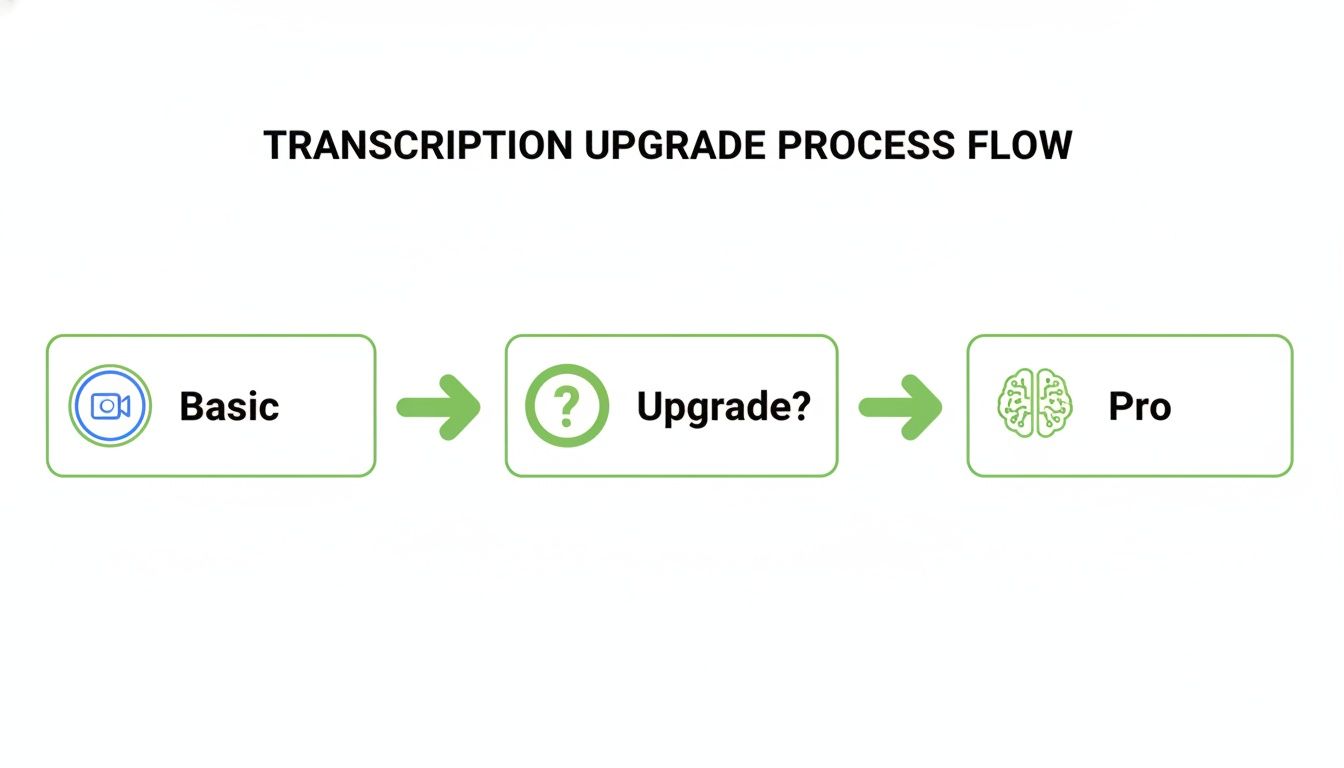
As you can see, once your needs go beyond basic notes, a professional tool is the logical next step for getting the accuracy and features you really need.
Step 2: Export and Upload to a Professional Tool
After the meeting, locate the recording on your computer (usually in your Documents/Zoom folder). You'll find a video file (MP4) and an audio-only file (M4A). The M4A is perfect for transcription.
Next, upload the file to a dedicated transcription service. Using Vatis Tech as an example:
- Log into your Vatis Tech account.
- Drag and drop the M4A file directly into the uploader.
- The AI will begin processing the audio immediately.
By 2026, 54% of employees want post-meeting summaries, but only 39% get them. That's a massive productivity gap, especially considering the 34 trillion minutes of video calls happening each year. Professional tools close this gap by delivering 88-93% accuracy and vital features like speaker diarization that make conversations understandable. You can explore more on this topic in Zoom's research on workforce productivity.
Step 3: Refine and Polish in the Interactive Editor
No AI is 100% perfect, but a good professional tool gets you 98% of the way there. The real power is in the interactive editor, which syncs the text with audio playback, allowing for quick corrections.
Think of the AI as your incredibly fast assistant. It does the heavy lifting, and you do the final, nuanced edits that require human intelligence.
Common Refinements:
- Correcting Names and Jargon: The AI might misspell a unique company name or technical term. A good editor highlights low-confidence words. Use the find-and-replace function to fix them all at once. Better yet, add them to a custom vocabulary so the AI learns them for future transcripts.
- Assigning Speaker Labels: The AI automatically separates speakers (this is called diarization), but you'll need to assign names. Simply click a generic label like "Speaker 1," type the person's name, and the platform applies it to all of their dialogue.
- Tidying Up Punctuation: Read through for any awkward punctuation or sentence breaks to ensure readability.
Step 4: Export for Your Specific Use Case
Once your transcript is perfect, the final step is to export it in a format that suits your needs. This is where professional tools offer far more flexibility than a basic VTT file.
| Export Format | Ideal Use Case |
|---|---|
| DOCX | Perfect for creating detailed meeting minutes, reports, or blog post drafts in Microsoft Word or Google Docs. |
| SRT / VTT | For creating timed subtitles for the video version of your meeting, making it accessible for platforms like YouTube. |
| TXT | A simple plain-text file that's great for feeding into other software or creating a searchable archive. |
With these options, your Zoom meeting transcription becomes a flexible asset you can repurpose for content marketing, internal training, and more, maximizing its value.
Turning Your Transcripts Into Strategic Assets
A raw transcript is a good start, but its real value is unlocked when you treat it as a rich dataset. By applying advanced AI analysis, your Zoom meeting transcription transforms from a simple record into a source of business intelligence.
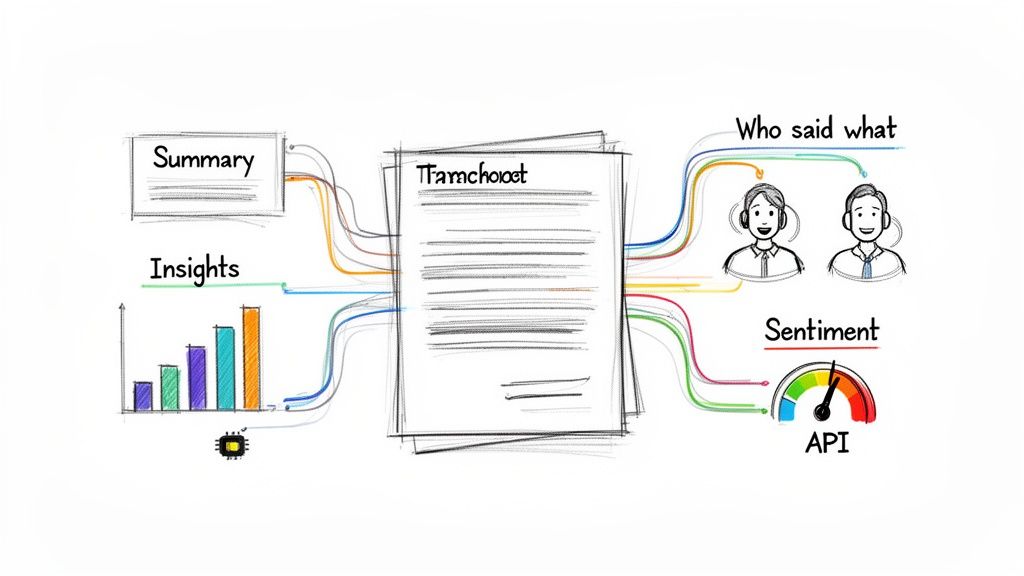
This is the shift from just documenting what was said to understanding what it means—saving time, spotting opportunities, and making smarter decisions.
From Hours of Review to Instant Insights
Nobody has time to reread a 60-minute meeting transcript. AI tools within platforms like Vatis Tech do the heavy lifting by automatically extracting critical information.
- Automatic Summarization: The AI generates a concise summary of the entire conversation, so you can get the key takeaways in seconds.
- Chapter Generation: For longer meetings, the transcript is automatically divided into logical chapters based on topics discussed (e.g., "Project Timeline," "Budget Concerns," "Next Steps"), making navigation effortless.
- Action Item Detection: The system identifies and lists tasks, decisions, and follow-ups, creating a clear, actionable checklist without any manual work.
This leap from manual review to automated analysis is a game-changer. Minutes after a meeting ends, every stakeholder can receive a clear summary and a list of their responsibilities, dramatically reducing the risk of missed deadlines.
Know Exactly Who Said What and How They Felt
Context is everything. Knowing who said something is as critical as what they said. Understanding the emotional tone can also reveal insights that plain text misses.
This is where features like speaker diarization and sentiment analysis become so powerful.
Speaker diarization identifies and labels each participant, transforming a wall of text into a clean script where every line is correctly attributed. This is non-negotiable for multi-person sales calls or user feedback sessions.
Sentiment analysis gauges the emotional undercurrent of the dialogue. It can flag parts of a call where a client sounded frustrated, excited, or hesitant. For a sales team, this is gold—it’s a roadmap to a customer's real feelings, helping them identify at-risk accounts or pinpoint moments of strong buying interest.
Advanced Tools for Technical Teams
For developers and product teams, a transcript can be more than a summary—it can be a direct input for custom apps and real-time analysis. Using a transcription API unlocks a world of possibilities for integrating speech data into your own tools.
| API Feature | Practical Use Case |
|---|---|
| Real-Time Streaming | Build a live dashboard that analyzes customer support calls as they happen, flagging keywords or negative sentiment for immediate manager intervention. |
| Custom Vocabulary | Teach the AI your company's specific product names, acronyms, and industry jargon to achieve near-perfect accuracy on highly technical content. |
| PII Redaction | Automatically find and scrub sensitive information like names, addresses, and credit card numbers from transcripts to ensure compliance and protect data. |
These capabilities allow teams to build dynamic, responsive systems. To see these features in action, you can try this free AI meeting transcription and summarization tool.
Ultimately, these advanced features elevate a transcript from a static document into a strategic asset that drives efficiency and uncovers hidden value.
Your Top Zoom Transcription Questions, Answered
When you're dealing with Zoom meeting transcription, a few common questions always pop up. Here are quick, practical answers to the problems we see most often.
How Can I Improve My Transcript's Accuracy?
Poor accuracy is almost always fixable and boils down to one thing: clean audio.
The single best thing you can do is have every speaker use a dedicated microphone. Even a basic headset is a huge upgrade over a laptop's built-in mic. Also, try to minimize background noise and ask participants not to speak over each other. For business-critical meetings with lots of jargon, a professional transcription service that offers a custom vocabulary feature will give you the highest accuracy.
Is My Zoom Transcription Data Secure?
Security is a huge—and valid—concern. When you use Zoom's built-in transcription, your data is processed and stored on Zoom's cloud, governed by their privacy policy.
For meetings with sensitive data, you need more control. A professional service like Vatis Tech often provides superior data security, with options for on-premise deployment or processing in a private cloud. Look for features like automatic PII redaction, which is non-negotiable for staying compliant with regulations like GDPR or HIPAA.
When choosing a transcription provider, always ask where your data is stored and who can access it. If you're in a regulated industry like healthcare or legal, only use a service with explicit compliance certifications like SOC 2 or ISO 27001.
Can I Get a Transcript from a Meeting I Didn't Host?
We get this question a lot. The short answer is no, not directly.
You can only get a transcript if the meeting host enabled cloud recording and audio transcription. As an attendee, you cannot initiate the process yourself. Your only option is to ask the host to share the recording and its associated transcript file (usually a .vtt file) with you after the meeting.
What's the Difference Between Live and Post-Meeting Transcripts?
They serve two different functions. Grasping this distinction is key to understanding video transcription workflows.
- Live Transcription: These are the real-time captions you see during a meeting. Their primary purpose is accessibility, helping people follow the conversation as it happens. Accuracy can be lower due to the need for speed.
- Post-Meeting Transcript: This is the complete text file of the entire conversation, created after the meeting recording has finished processing. It is generally more accurate and is what you'll use for creating notes, summaries, or a searchable archive.
Ready to achieve near-perfect accuracy and unlock strategic insights from your meetings? Vatis Tech provides an AI-powered transcription service with 98%+ accuracy, automatic summarization, and robust security features. Try it for free and see the difference for yourself.